Gateway Room
This guide explains how to set up an Gateway Room using the Loft App.
⚠️ Note: To set up a Gateway Room, the device must already be installed. If don't know how to install a device so click here.
Watch The Video Tutorial
Steps to Setup Gateway Room
-
Open the Loft App
-
Go to Gateway Section
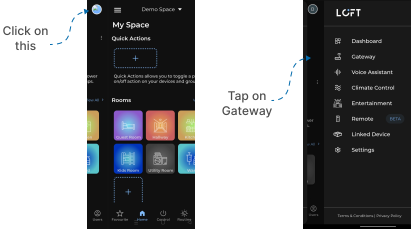
- Tap the side menu (hamburger icon) in the top-left corner.
- Select the Gateway option.
- Select Device in Gateway List
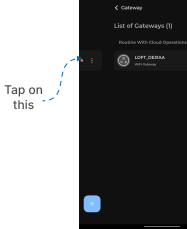
- Installed device will appear in the Gateway list.
- Tap on it to proceed.
- And make sure your Gateway Network Configuration Setup already done before.
- Add Room
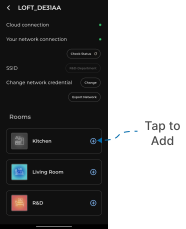
- All available rooms will be listed with some other network settings.
- Tap on '+' (Add) button on room which you want to Add Gateway (You can assign the gateway to all rooms or a single room).
- Now in that Room your Gateway was Added.
- Remove Room
- If you wants to remove Gateway from a Room.
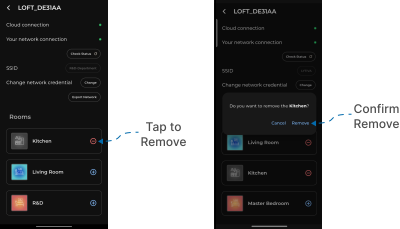
- Tap on '-' (Remove) button on room which you want to Remove Gateway.
- An Confirmation popup will appears, from that Click Remove.
- Now in that Room your Gateway was Removed.